6. Pro-forma invoices and conversion into invoice¶
A pro-forma invoice (also called a quote or offer) is a document made before delivery or service is performed. Unlike an invoice, a pro-forma invoice:
- ❌ Is not a tax document. It is not subject to VAT. It is not reported in the tax declaration.
- ❌ Is not sent to UJP. The e-Invoice system only accepts official invoices.
- ✅ Serves as a quote or a payment request. The buyer accepts it, pays an advance or confirms an order.
- ✅ Can be converted into a real invoice later — with a single click.
In this module they are kept separate so as not to mix with the main invoice list and not to be accidentally sent to UJP.
6.1. Where it opens¶
From the main menu:
- Invoicing → Pro-forma Invoice List — view, edit, print, convert.
- Invoicing → New Pro-forma Invoice — entry form directly.
6.2. The "Pro-forma Invoice List" window¶
The layout is similar to the invoice list, but with a simpler structure — without UJP buttons and with one extra Status column.
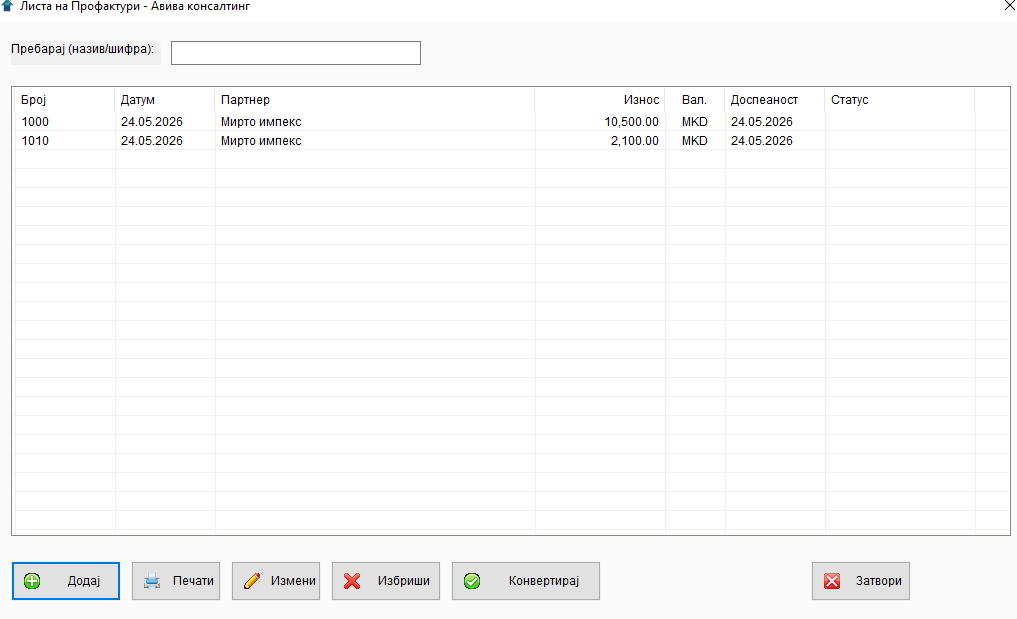
Columns¶
| # | Column | Description |
|---|---|---|
| 1 | (hidden) | Internal ID |
| 2 | Number |
Pro-forma invoice number |
| 3 | Date |
Issue date |
| 4 | Partner |
Name of the buyer |
| 5 | Amount |
Total amount |
| 6 | Cur. |
Currency |
| 7 | Due date |
Date by which payment or acceptance is expected |
| 8 | Status |
Blank if not converted. "Converted (FA-XXX)" if already turned into an invoice (XXX = number of the new invoice) |
Tip
All columns are sortable by clicking the header. By default sorted by Date descending.
Buttons¶
| Button | What it does |
|---|---|
| Add | New pro-forma invoice |
| Prints the selected one(s) to PDF | |
| Edit | Opens the selected one for editing (or double-click) |
| Delete | Deletes the selected ones |
| Convert | Converts the selected one into a real invoice (more below) |
| Close | Closes the window |
Right click (context menu)¶
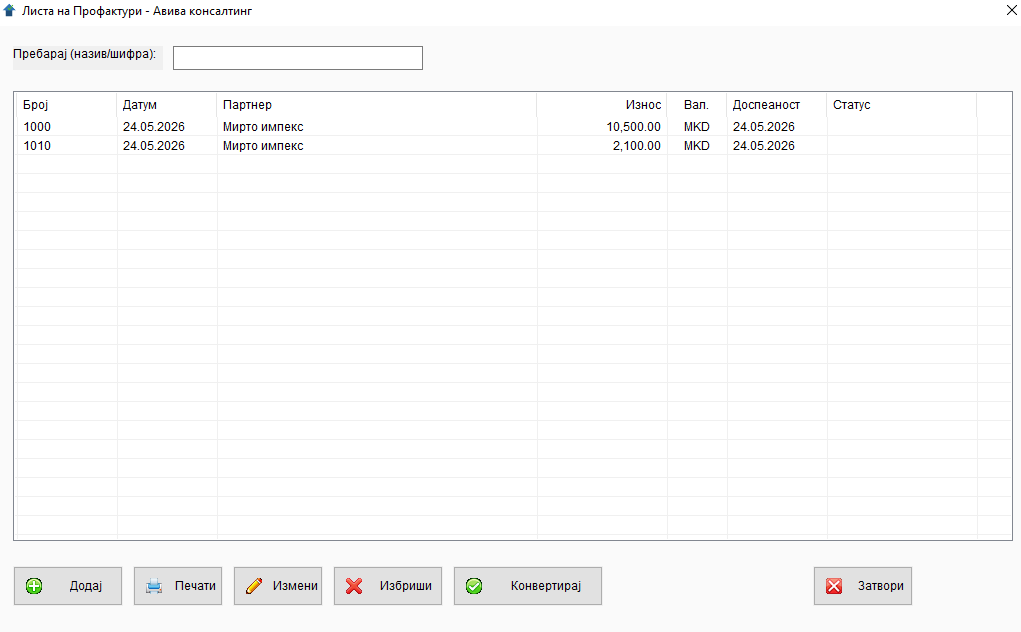
- Edit
- Print to PDF
- Convert into invoice
- Delete
6.3. Creating a new pro-forma invoice¶
Clicking Add or Invoicing → New Pro-forma Invoice opens a "Pro-forma Invoice Entry" form.
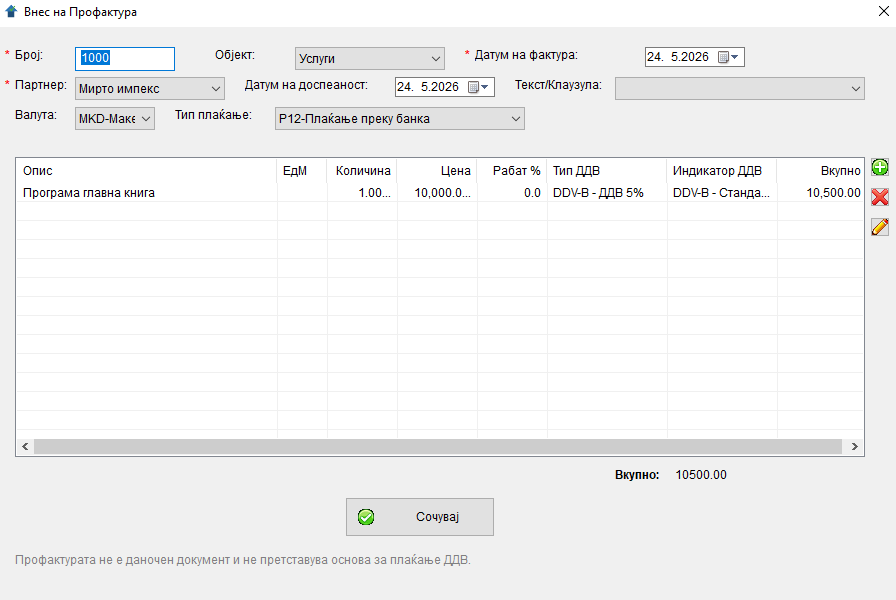
The form is a simplified variant of the invoice form — it lacks the following fields:
- ❌ Delivery note / Delivery note date (a pro-forma invoice precedes delivery)
- ❌ Work order / Work order date
- ❌ Document type (always "pro-forma")
- ❌ Related document (irrelevant)
- ❌ UJP panel (a pro-forma invoice is not sent)
The rest is identical to the invoice form — with number, date, partner, due date, currency, payment type, clause, site, and items (grid).
Header fields¶
| Field | Description | Required |
|---|---|---|
Number * |
Pro-forma invoice number (free-form text — no link to the BR_FAK sequence of invoices) | ✅ |
Site |
Location (usually the same site as for invoices) | ✅ |
Invoice date * |
Today's date by default | ✅ |
Partner * |
Buyer | ✅ |
Due date |
By when the buyer should react/pay. Must not be earlier than the pro-forma date (same day is allowed). | no |
Text/Clause |
Clause (e.g. "Offer valid for 14 days") | no |
Currency |
MKD by default | no |
Payment type |
P10 / P12 / etc. | no |
Items¶
Identical to an invoice — a grid with 8 visible columns (description, UoM, quantity, price, discount, VAT type, VAT indicator, total), +/− buttons for adding/deleting items, button for multi-line description.
The article picker 🔍 works identically to the invoice form — select a row, click the magnifier, choose an article from the codebook (§4.4) and the description/UoM/price/VAT codes are populated automatically. The picked article's code is kept on the item (stavkpr.artikal_code) and is carried over automatically when you convert the pro-forma invoice into an invoice — the article links stay intact.
Details of the picker: §5.4 → Picking from the article codebook.
Saving¶
Save runs the same minimum validation (number, date, partner, at least one item, due date not earlier than the date) and saves. "The pro-forma invoice was saved successfully!" appears.
As with invoices, if something goes wrong when writing to the database, the whole transaction is rolled back.
6.4. Printing a pro-forma invoice¶
Select one or more pro-forma invoices and press Print (or right click → Print to PDF). For each one a PDF named Profaktura_<number>.pdf is generated in the application folder.
Differences from an invoice on the PDF:
- The document title is "PRO-FORMA INVOICE no. …" instead of "INVOICE no. …".
- Above the amount due there is a red note:
A pro-forma invoice is not a tax document and does not constitute a basis for VAT payment.
- The rest of the layout (header with issuer and buyer, items, signature, footer) is identical.
6.5. Conversion into invoice¶
This is the central function of the pro-forma invoice module.
When to convert¶
When the buyer has accepted the pro-forma invoice and you are ready to issue an official invoice for the same order/delivery. Conversion:
- ✅ Creates a new invoice in the
Invoice Listwith the same partner, the same items. The new invoice's number is allocated automatically — the next free BR_FAK for the active issuer and the year of the pro-forma invoice (e.g. if the last invoice for 2026 is 47, the new one will be 48). The pro-forma invoice's textual number is not carried over. - ✅ Transfers all items automatically — you do not have to enter them again.
- ✅ Marks the pro-forma invoice as "Converted" with a reference to the new invoice.
Steps¶
- In the pro-forma invoice list select a single row (only one — not several).
- Press Convert (or right click → Convert into invoice).
- A confirmation message appears:
Are you sure you want to convert this pro-forma invoice into an invoice? The new invoice number will be the next free one for the current year (you can change it afterwards).
- With Yes the conversion runs. "Pro-forma invoice successfully converted into invoice no. XXX" appears.
- The pro-forma invoice now shows "Converted (XXX)" in the
Statuscolumn.
What is carried over¶
| From pro-forma → | To invoice |
|---|---|
| Number | (not carried — the invoice gets an automatic number for the current year; you can change it later) |
| Date | Date |
| Currency | Currency |
| Partner | Partner |
| Due date | Due date |
| Site | Site |
| Text/Clause | Text/Clause |
| Payment type | Payment type |
| All items (description, quantity, price, discount, VAT) | All items |
| — | Document type automatically "100" (standard invoice) |
After conversion¶
The pro-forma invoice stays in the list — it is not deleted. You can:
- Print it as history (but it is already superseded — the client has the invoice).
- Edit it (but the changes do not propagate to the new invoice).
- Delete it if you no longer need it.
The same pro-forma invoice cannot be converted twice
If you try, the message appears:
This pro-forma invoice has already been converted into invoice no. XXX
6.6. Editing and deleting¶
Editing a pro-forma invoice — double-click or Edit → the same form opens with the existing values. Saving wipes all old items and writes the new ones.
Warning
Editing a pro-forma invoice does not affect the already-converted invoice. They are independent once you separate them.
Deleting — select and press Delete. Confirmation, then a transactional delete (pro-forma invoice + items).
A pro-forma invoice can be deleted even if it has already been converted — the invoice itself is not affected, only the link is broken. (This differs from partners/sites/clauses where deletion is prevented for audit-trail reasons.)
6.7. Tips¶
- 💡 Convert in good time. Do not leave pro-forma invoices open for months — it is easy to forget whether they have been paid or not. Convert as soon as the buyer accepts the offer.
- 💡 Separate numbering. The pro-forma invoice number is free-form text (e.g.
P-1,Offer-2026/12) and has no link to the BR_FAK sequence of invoices. When you convert, the new invoice automatically gets the next free BR_FAK for the current year — the two numbers remain independent. - 💡 Print PDFs for the buyer. A pro-forma invoice in PDF is the document the buyer accepts — send it to them by e-mail as an attachment.
- 💡 Pro-forma for an advance. If the buyer pays an advance against a pro-forma invoice, you can write the advance terms in the clause, then on conversion add the advance payment as a separate line or note on the invoice.
← Back to contents | Previous: Invoices ← | Next: PDF printing →