3. Issuer profile (My Company)¶
The "Issuer profile" holds the details of your company that appear on every invoice you issue (header, EDB, banking details, logo). You enter these once and then only update them occasionally.
3.1. Where it opens¶
From the main menu: Codebooks → My Company Profile.
On first run
The application will open this window automatically because it cannot proceed without at least one issuer. See chapter 1 — Installation and first run.
3.2. Form fields¶
The "Issuer profile" form has three logical sections: basic data, logo and banking details. The signing data (EUJP-ID and certificate) is separate — a single token serves all issuers in the installation and is entered in Service → Certificate (see chapter 10 — UJP integration).
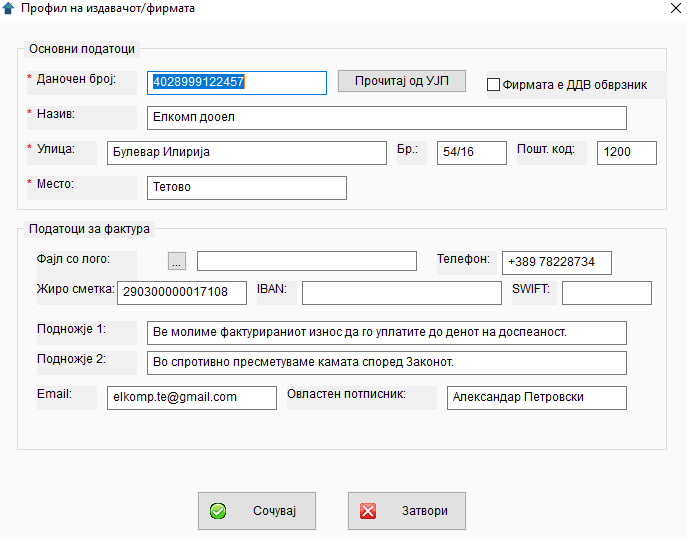
Basic data¶
The fields are shown in the same order as in the form — the EDB comes first so that you can immediately press Read from UJP and have the rest filled in automatically.
| Field | Description | Required |
|---|---|---|
Tax number (EDB) |
Unique Tax Number (13 digits). | ✅ yes |
Company is VAT-registered |
Check box. Tick it if the company is in the VAT regime. Affects the UJP e-invoice: for VAT-registered companies the e-invoice carries sellerVatNumber = "МК"+EDB; for non-VAT companies this field is sent as null — otherwise UJP rejects the invoice with error E10003. |
(depends on the company's status) |
Name |
Full company name as it will appear on the invoice (e.g. "БИРО-ТРИМ 1 ДООЕЛ"). Up to 100 characters. | ✅ yes |
Street |
Street of the company's seat. Up to 60 characters. | ✅ yes |
No. |
Street number (e.g. "14a"). Up to 10 characters. | no |
Postal code |
Postal code (e.g. "1000" for Skopje). Up to 10 characters. | no |
City |
City/town. Up to 40 characters. | ✅ yes |
Phone |
Phone contact number. | no |
Email |
E-mail address for contact. Also used in UJP integration. | no (but recommended) |
Authorised signatory |
First and last name of the person who signs the invoices. Printed at the bottom of the PDF. | no (but recommended) |
Fields marked with a red asterisk * are required — saving will not succeed without them.
Read from UJP — recommended
To the right of the Tax number field there is a Read from UJP button. Enter the EDB (13 digits) and press the button — eFakturaWin calls the UJP API and automatically fills in Name, Street, No., City, Postal code and Company is VAT-registered with the correct values from the UJP registry. This avoids all "wrong name/address" errors.
Prerequisite: the EUJP-ID and certificate serial number must be set in Service → Certificate, and at least one issuer must already exist (for the first profile, enter it manually first — then you can refresh it with the button).
Why this matters — UJP is case-sensitive
The UJP validator is very strict and case-sensitive (it distinguishes lowercase from uppercase) around Name, Street, No. and City. "БИРО-ТРИМ" ≠ "Биро-Трим" ≠ "биро-трим" — every variant is rejected. A minimal difference (an extra dot, an abbreviation, a trailing space, new vs. old Cyrillic variants) causes invoices to be rejected with errors such as E10001 / E10002 / E1012.
If you are not sure of the exact text, use the Read from UJP button instead of typing manually. Alternatively — open the UJP registry and copy the exact text: 🔗 https://efakturatest.ujp.gov.mk/companies. The same rule applies to new partners (see §4.1).
Company logo¶
| Field | Description |
|---|---|
Logo file |
Full path to the logo image (PNG or JPG). Press the button to the right of the field to open the Windows file browser. |
Recommendations:
- Format: JPG or PNG. Other formats will not be displayed in the PDF.
- Resolution: approximately 1024 × 736 pixels or a similar aspect ratio is recommended.
- File location: it is best for it to be in the same folder as the application (e.g. tekstovi/logo.png). If you move the file, the path here will no longer be valid.
Tip
You can leave the logo field blank — invoices will be printed without a logo.
Banking details¶
| Field | Description |
|---|---|
Giro account |
Macedonian giro account. Printed on domestic invoices. Up to 15 characters. |
IBAN |
International bank account number. Printed on export invoices. Up to 34 characters. |
SWIFT |
SWIFT/BIC code of the bank. Printed on export invoices. Up to 11 characters. |
Why all three?
Macedonian buyers pay to the giro account. Foreign buyers pay to IBAN/SWIFT. eFakturaWin automatically detects whether an invoice is for export (the partner is outside MK) and prints the appropriate banking details on the PDF.
Invoice footer¶
| Field | Description |
|---|---|
Footer 1 |
First footer line (e.g. "Registered in the Central Registry of Macedonia"). Up to 75 characters. |
Footer 2 |
Second line (e.g. company number, registration mark). Up to 75 characters. |
These two lines appear at the bottom of every PDF invoice, below the authorised signatory.
3.3. Saving¶
When you have entered all the required data:
- Press the Save button.
- The system will check whether the required fields are populated. If something is missing, a message will appear ("Enter name!" / "Enter address!" / "Enter EDB!" etc.) and the cursor will jump to the relevant field.
- If everything is in order, "Data saved successfully." appears.
The window does not close automatically after saving — you can make additional changes or press Close.
3.4. Multiple issuers (multi-tenant)¶
A single installation of eFakturaWin can serve multiple companies (e.g. an accounting office with 5 clients):
- Open the "Issuer profile" window after the first sign-in.
- Enter the data for the first company and save.
- To add a second company: close the window, then go back to the menu Codebooks → My Company Profile. Press "Add" (if such a button exists) or, from the sign-in window, click the Add button.
Each company has its own: - partners, - sites/locations, - clauses, - invoices and pro-forma invoices.
Users are shared — one user can sign in under any company. The signing data (EUJP-ID + certificate) is likewise shared at the installation level — one qualified certificate (for example, an accounting firm's) serves all issuers in the database.
When signing in, one active company is always chosen; the status bar at the bottom of the main window shows the name of the active issuer. To switch to another company within the same session, use Service → Sign in again.
3.5. Tips and standard work procedure¶
- 💡 Choose a JPG logo with a white or transparent background. Images with a dark background may look poor on a white PDF.
- 💡 Test the look with a trial invoice. After the first profile entry, create a trial invoice and print it to PDF to see how the logo, header and footer come out. If something is off (the logo too large, the footer running past the margin), go back and fix it.
- ⚠️ Do not change the EDB once you have already issued invoices. Those invoices already carry your EDB in the database and in UJP. Updating the EDB means a break in the audit trail.
- 💡 Backups. After every larger profile update, make a backup of
eFakturaWin.db.
← Back to contents | Previous: Sign-in and passwords ← | Next: Partners →