4.4. Article codebook (products/services)¶
Articles are the products or services you resell or invoice. The codebook keeps their default values — name, UoM, price, VAT type/indicator, account — for reuse when entering invoices and pro-forma invoices.
The codebook is per issuer — each company in the installation has its own list. That means that if you are an accounting firm with several clients, each client has its own article database.
4.4.1. Where it opens¶
From the main menu: Codebooks → Articles (products/services).
The "Article Codebook" window shows a list of all articles linked to the active issuer.
4.4.2. Columns in the list¶
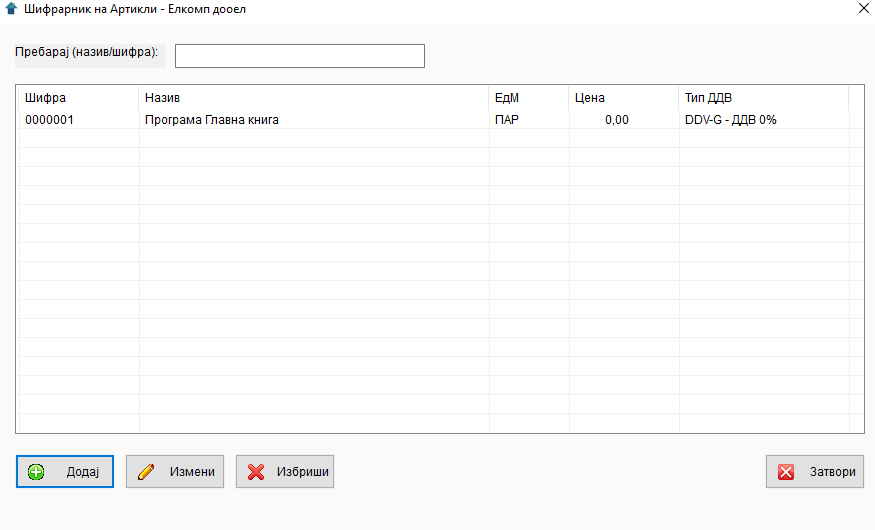
| Column | Description |
|---|---|
Code |
Unique code within the active issuer. Up to 20 characters. |
Name |
The name as it will appear on the invoice. Up to 200 characters. |
UoM |
Default unit of measure (e.g. "pcs", "h", "kg"). |
Price |
Default price, formatted with a dot for thousands and a comma for decimals (1.234,56). |
VAT Type |
Default code from the UJP codebook (DDV-A = 18%, DDV-B = 5%, DDV-V = 10%, DDV-G = 0%). Details: Appendix A.3. |
Above the list there is a Search field — you type and the list filters by code or name as you type.
4.4.3. Buttons¶
Below the list:
- Add — new article.
- Edit — edit the selected row (or double-click in the list).
- Delete — delete the selected row.
- Close — close the window.
4.4.4. Adding and editing an article¶
Clicking Add or Edit opens an "Article" window with these fields:
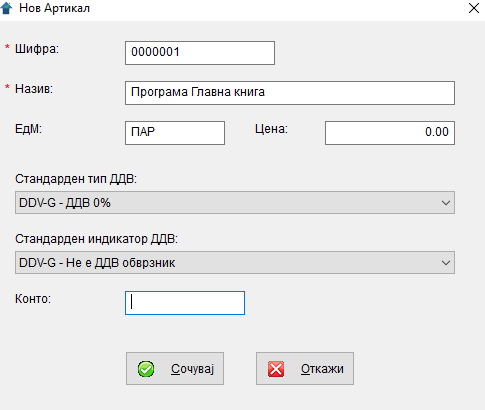
| Field | Description | Required |
|---|---|---|
Code |
Unique code within the active issuer. Up to 20 characters. | ✅ yes |
Name |
Up to 200 characters. Filled into the "Description" column of the invoice when you pick the article. | ✅ yes |
UoM |
Up to 10 characters. | no |
Price |
Default price. On the invoice itself you can change it per line. | no (defaults to 0) |
Default VAT type |
Code from cb_tax_group. Filled into the "VAT Type" column of the invoice when an article is picked. |
no |
Default VAT indicator |
Code from cb_tax_indicator. Filled together with the VAT type. |
no |
GL account |
General ledger account (for CSV export). Up to 16 characters. | no |
For non-VAT issuers
If the active issuer is not VAT-registered, the default values for VAT type and VAT indicator are kept in the codebook but are not applied when picking the article into an invoice — the line always goes to 0% (DDV-G). That way you never risk an incorrect VAT calculation for a company that is not allowed to charge VAT.
Saving¶
Save checks that the code and name are filled in, and that the code is unique for the active issuer. If the code already exists, the message "The entered code already exists for another article." appears and the cursor jumps to the code field.
With Cancel you leave without saving.
4.4.5. Deleting¶
Select an article and press Delete.
An article used by any invoice or pro-forma invoice cannot be deleted
This is a safeguard against losing the audit trail. The message appears:
This article cannot be deleted because an invoice or pro-forma invoice has been created for it.
The old invoice continues to display the name and price that were in effect at the time of issue, even if you change them in the codebook now. That is why the article cannot simply be deleted — you would first have to delete all invoices/pro-forma invoices that use it (which is usually not what you want), or simply rename it to "X (inactive)" and leave it.
4.4.6. How it is used on an invoice¶
Once you have added articles, when entering an invoice (see §5.4) use the 🔍 button to the right of the items grid — a "Pick article" window opens with all articles for the active issuer. A double click or OK fills the currently selected line with the description, UoM, price and VAT codes from the article. The same picker works on pro-forma invoices (§6.4).
4.4.7. Tips¶
- 💡 Enter the most common articles before issuing invoices. The picker will save you a lot of typing — especially for services with long descriptions or products with specific VAT codes.
- 💡 The code can be anything you like. An integer, a mnemonic code (
SOFT-LIC), a barcode — it just has to be unique for the active issuer. - 💡 The article's price is a default — not mandatory. On the invoice itself you can change it for that line (e.g. with a discount for a loyal customer) without changing the codebook.
- ⚠️ Do not duplicate articles. The same product under two different codes will split your reports. Use "Search" before adding a new one.
← Back to contents | Previous: Clauses ← | Next: Issuing an invoice →